Welcome to Sticksy NFC! This guide will walk you through everything you need to know to get started with your NFC stickers.
What is NFC?
NFC (Near Field Communication) is a wireless technology that allows devices to communicate when they're close together—usually within a few centimeters. It's the same technology used in contactless payments and transit cards.
With Sticksy NFC stickers, you can program custom actions that trigger when someone taps the sticker with their smartphone. No app installation required for the person tapping!
What You'll Need
Before getting started, make sure you have:
- A smartphone with NFC capability (most modern phones have this)
- Sticksy NFC stickers from our store
- The Sticksy NFC app installed on your phone
Download the App
Get the Sticksy NFC app for your device:
- iOS: Download from the App Store
- Android: Download from Google Play
App Overview
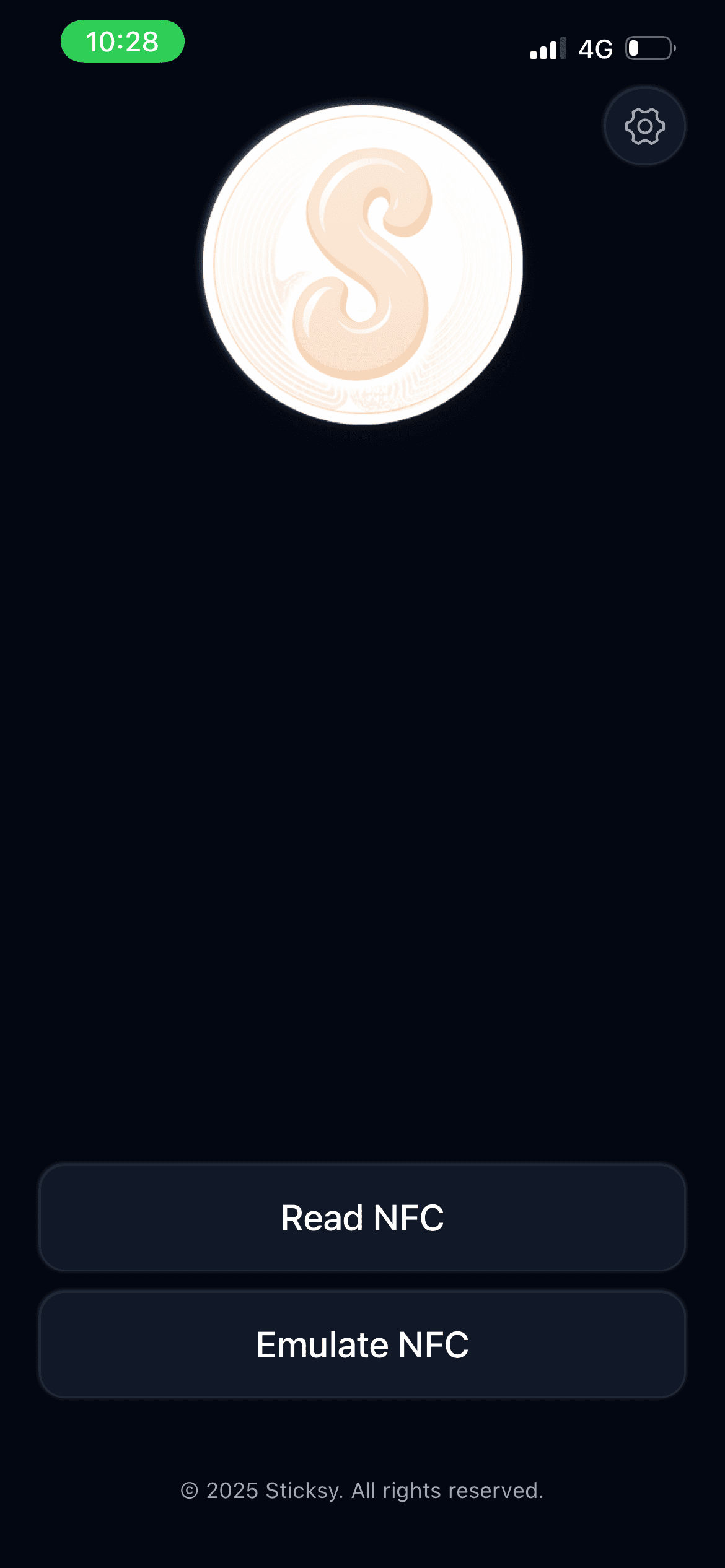
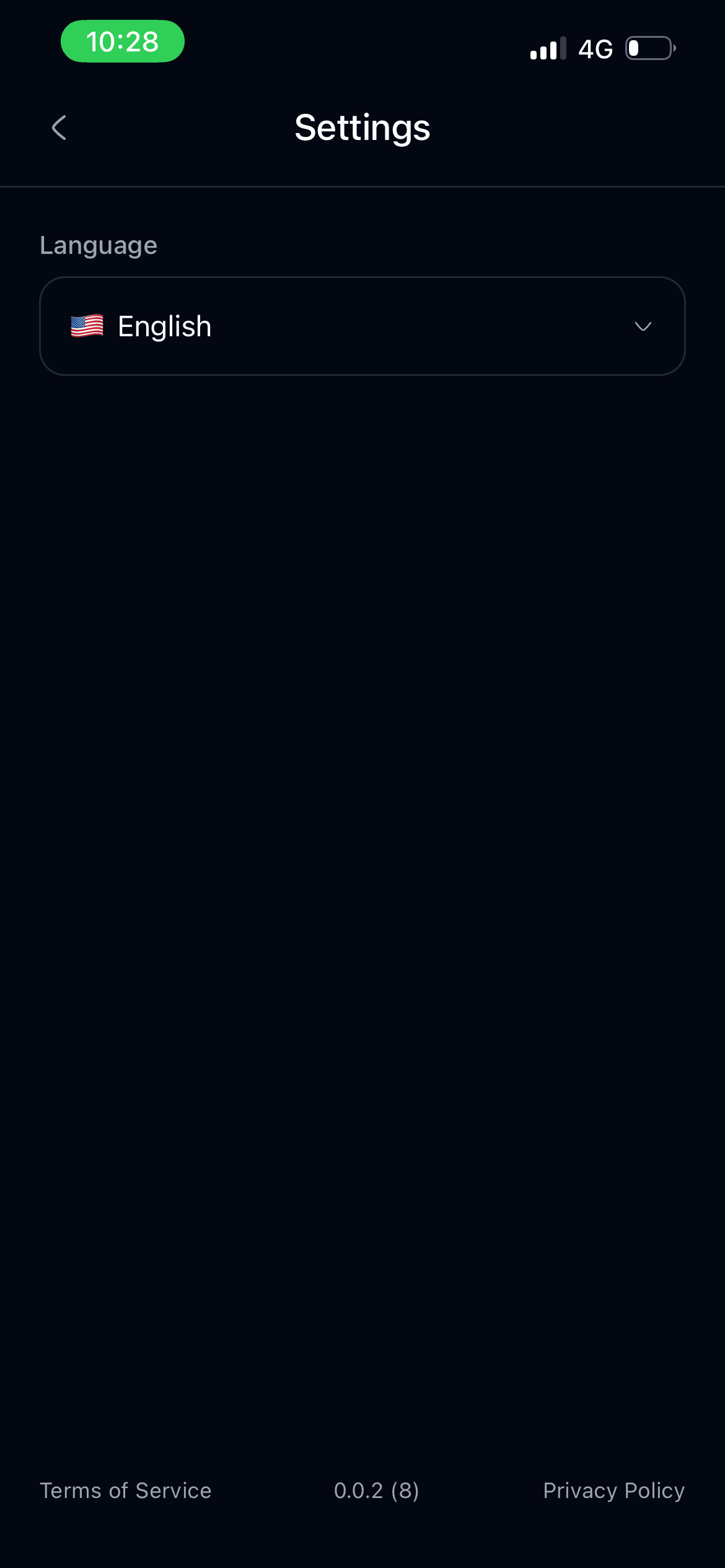
When you open the Sticksy NFC app, you'll see the home screen with the Read NFC button. Tap the gear icon in the top right corner to access settings, where you can change the app language.
Reading an NFC Sticker
Step 1: Tap Read NFC
From the home screen, tap the Read NFC button to start scanning.
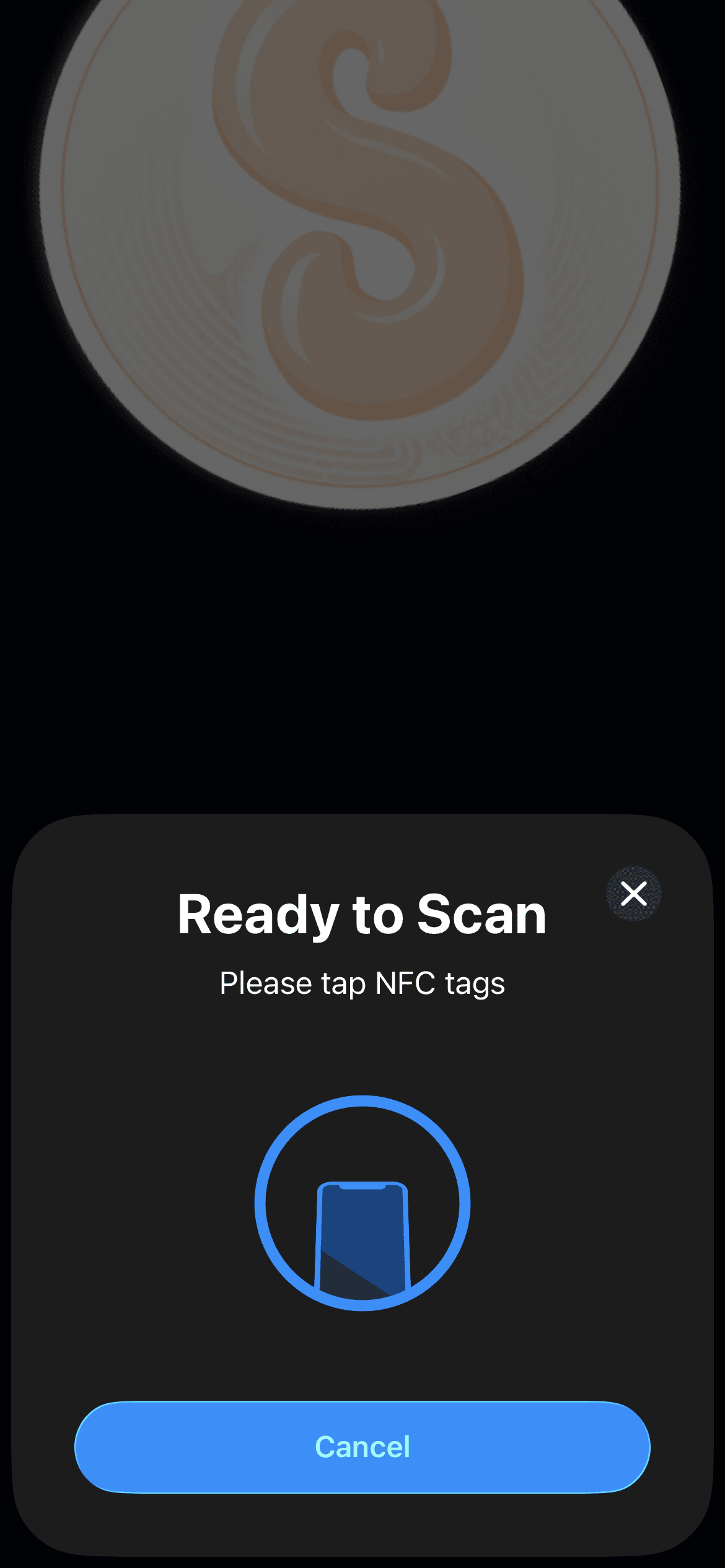
Step 2: Hold Your Phone Near the Sticker
A "Ready to Scan" prompt will appear. Hold your phone near the NFC sticker and keep it steady.
Step 3: View Tag Information
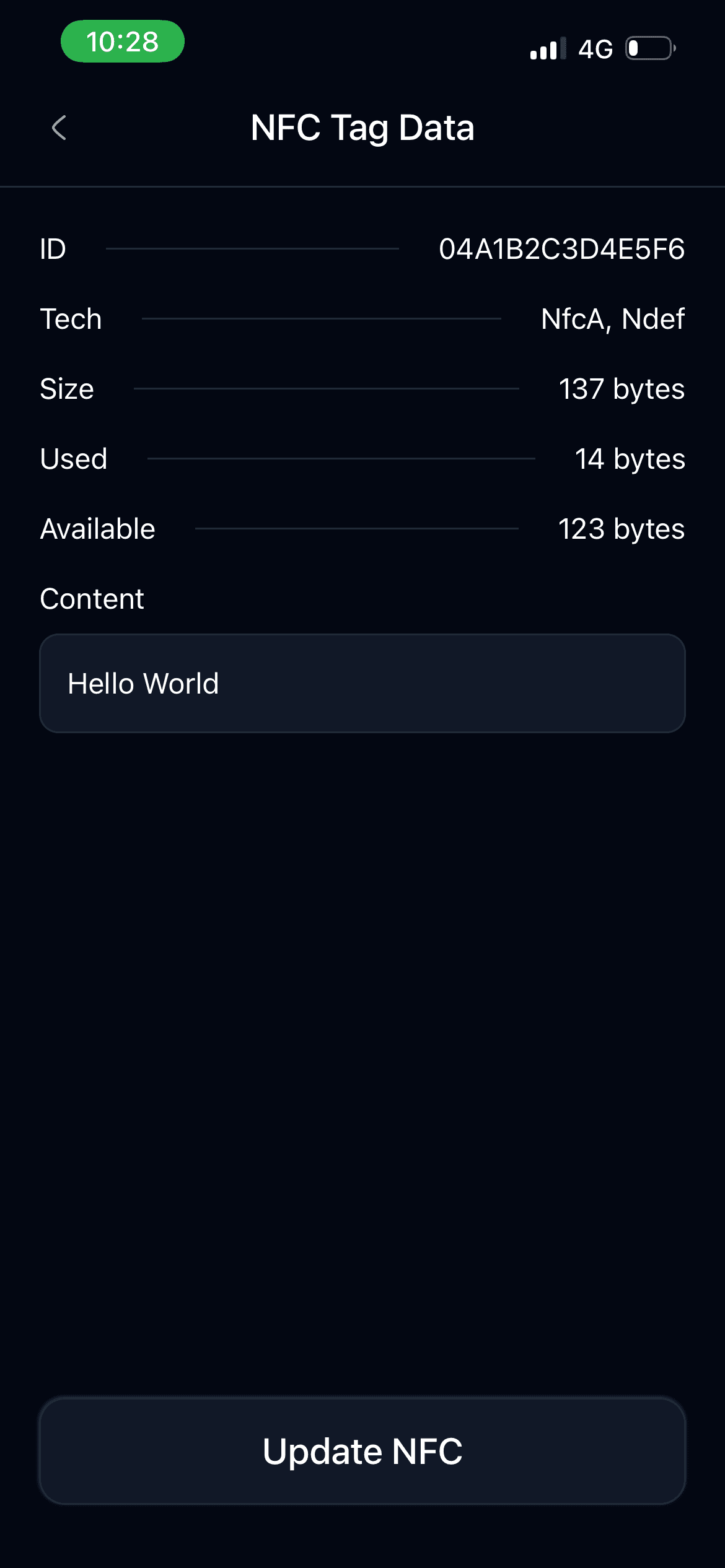
Once the sticker is detected, you'll see detailed information about the NFC tag:
- ID - The unique identifier of the tag
- Tech - The NFC technology type (e.g., NfcA, Ndef)
- Size - Total storage capacity in bytes
- Used - How many bytes are currently used
- Available - Remaining storage space
- Content - The data currently stored on the tag
Writing to an NFC Sticker
Step 1: Read the Sticker First
Start by reading the sticker using the steps above. After viewing the tag data, tap the Update NFC button at the bottom of the screen.
Step 2: Choose Content Type
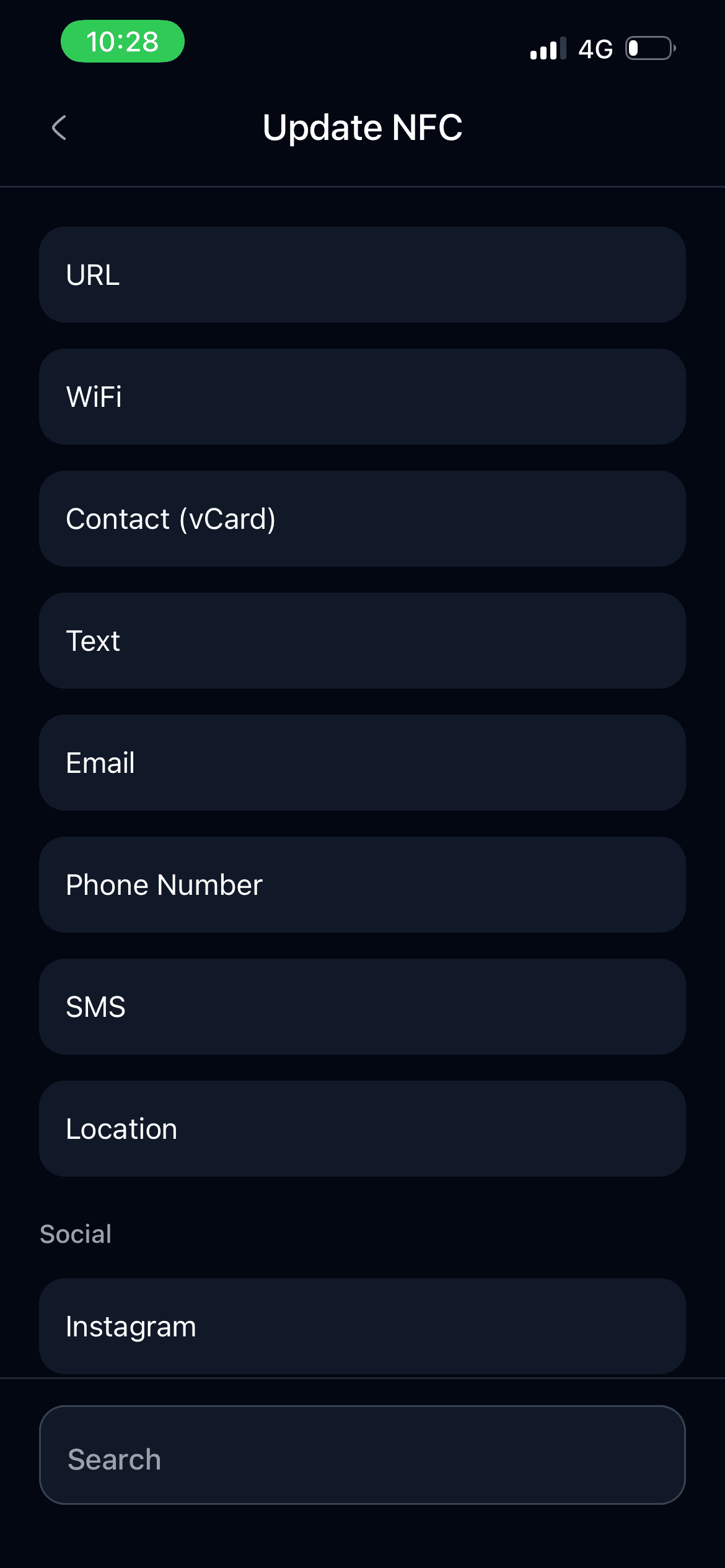
You'll see a list of content types organized by category. Select what you want to write:
General:
- URL - Open a website
- WiFi - Share network credentials
- Contact (vCard) - Share your contact card
- Text - Display a message
- Email - Pre-compose an email
- Phone Number - Trigger a phone call
- SMS - Pre-compose a text message
- Location - Share a map location
Social:
- Instagram, TikTok, YouTube, Twitter, Facebook, Snapchat, WhatsApp, Telegram, Discord, LinkedIn, Reddit, Pinterest, Twitch, GitHub, Medium
Music:
- Spotify, Apple Music, SoundCloud, Bandcamp
Payment:
- PayPal, Venmo, Cash App
Business:
- Slack, Zoom, Teams, Behance, Dribbble
Apps:
- App Store, Play Store
Use the search bar at the bottom to quickly find the option you need.
Step 3: Enter Your Content
After selecting a content type, enter the required information. For example:
- For URL, enter the web address (e.g.,
https://sticksy.ca) - For Instagram, enter your username
- For WiFi, enter your network name and password
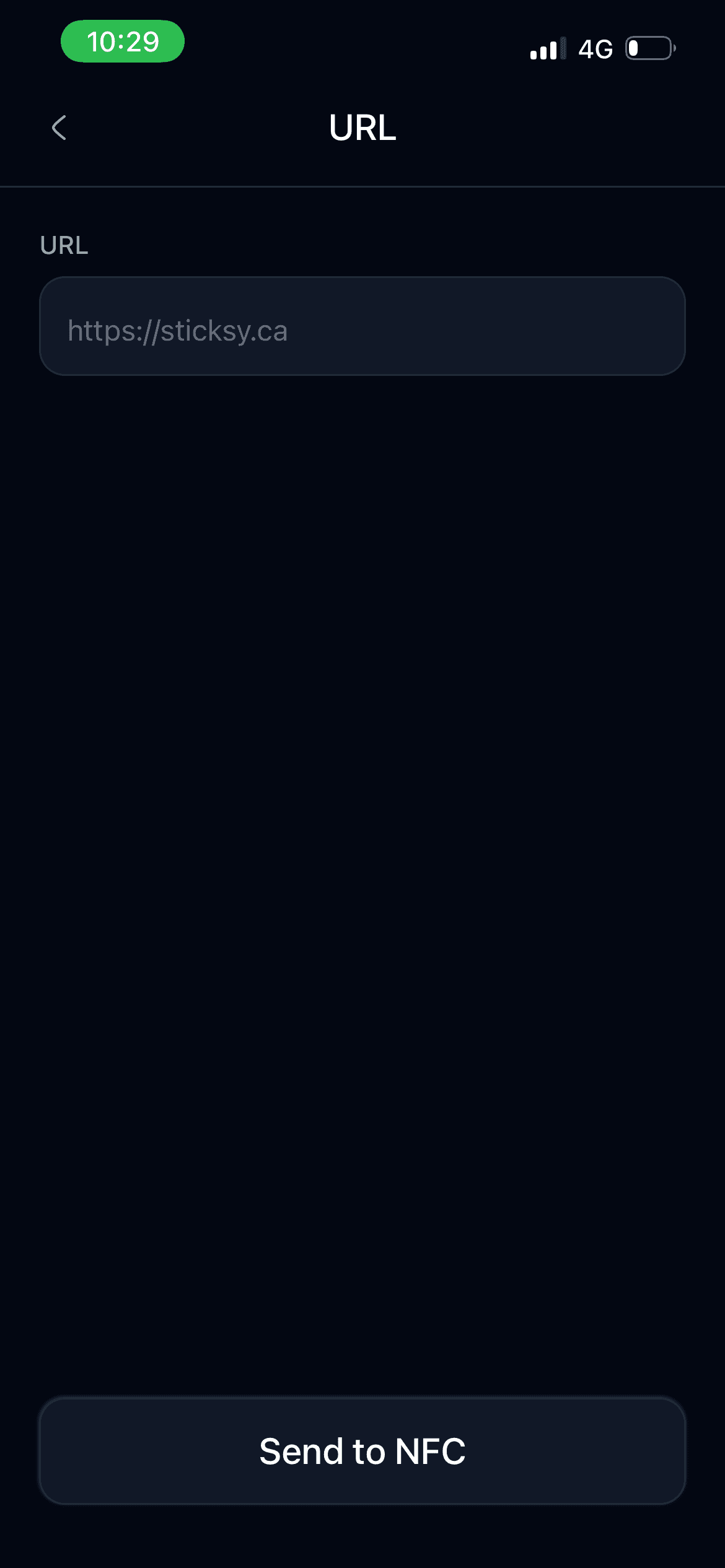
Step 4: Send to NFC
Tap the Send to NFC button. The "Ready to Scan" prompt will appear—hold your phone near the sticker and keep it steady until you see the success message.
That's it! Your sticker is now programmed.
Testing Your Sticker
To test your newly programmed sticker:
- Move your phone away from the sticker
- Tap your phone against the sticker again
- The programmed action should trigger automatically
Tip: If nothing happens, make sure NFC is enabled in your phone's settings and try tapping different parts of your phone against the sticker.
Next Steps
Now that you've set up your first sticker, explore these guides to learn more:
- Placement Guide - Best practices for placing your stickers
- Use Cases - Creative ways to use NFC stickers
- Troubleshooting - Common issues and solutions